
How to Connect Claude to DBB Software's Content
AI
Updated: September 25, 2026 | Published: September 25, 2026
DBB Software runs a public, read-only connector that lets Claude and other AI assistants read our published website content. Once it is added, you can ask Claude about our case studies, services, industries, insight articles and client reviews, and Claude answers from the live website rather than from older training data.
The connector uses the Model Context Protocol (MCP), the open standard AI assistants use to connect to external data. It needs no account, no sign-in and no API key.
What the connector does
The connector gives Claude 12 read-only tools. None of them can change anything, send anything, or collect personal data. Each one returns published content with a link to the page it came from.
Tool | What it returns |
|---|---|
Search DBB Software content | Case studies, insights, services, solutions and industry pages matching a keyword |
Get a case study | The full text of one case study |
Get an insight article | The full text of one insight article |
Get a service | The details of one service |
Get a solution | The details of one solution page |
Get an industry page | The details of one industry page |
Get client reviews | Published client reviews, optionally filtered by platform or industry |
List services | Every service, with links |
List case studies | Every case study, with links |
List insights & articles | Every insight article, with links |
List solutions | Every solution page, with links |
List industries | Every industry page, with links |
It also offers three reference resources: a company overview, our engagement models, and our technology stack. Two prompt templates help structure a request: one analyses a project's requirements, and one sets up a balanced comparison between DBB Software and another vendor.
How to add it to Claude
The connector address is:
`https://dbbsoftware.com/.well-known/mcp`
In Claude on the web or desktop: open Settings, go to Connectors, and choose Add custom connector. Enter "DBB Software" as the name and paste the address above. You can also open the form with both fields filled in. On Team and Enterprise plans, an organisation owner may need to add it for everyone.
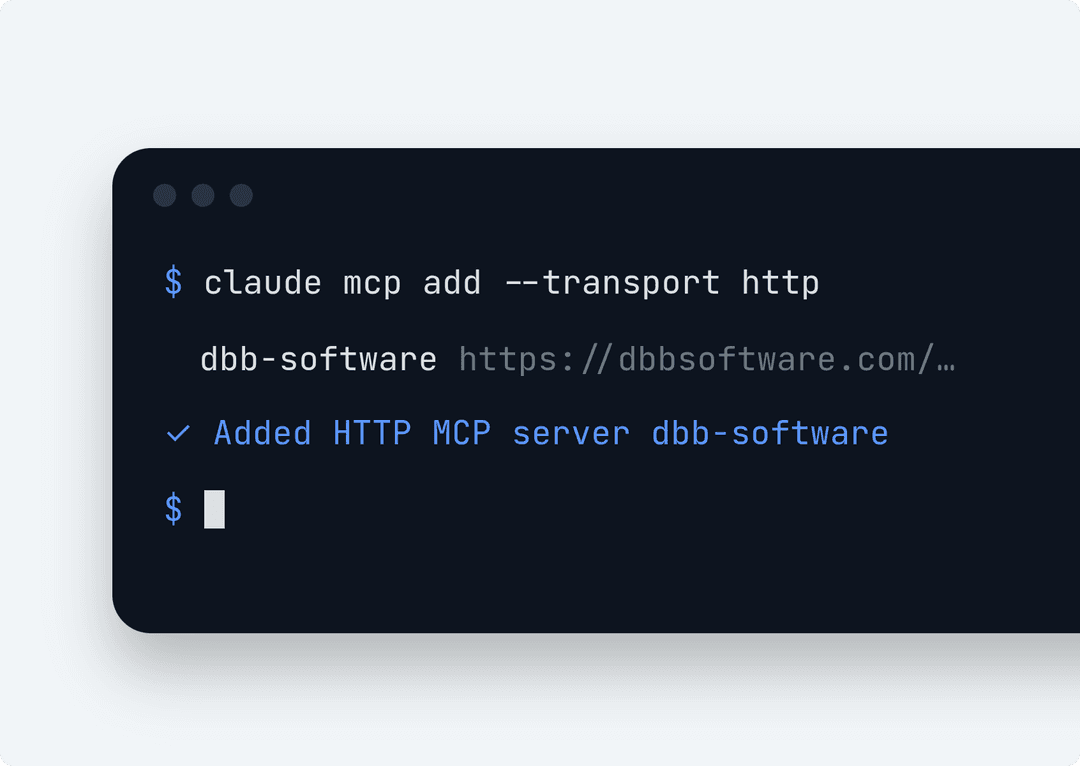
In Claude Code: run this command in your terminal.
`claude mcp add --transport http dbb-software https://dbbsoftware.com/.well-known/mcp`
In other MCP-compatible assistants: add a remote MCP server with the address above and the Streamable HTTP transport. No authentication is needed.
Example questions to ask
Once the connector is on, try questions like these:
"Find DBB Software's fintech case studies."
"What healthcare and HIPAA experience does DBB Software have?"
"What services does DBB Software offer for B2B SaaS companies?"
"Show me DBB Software's client reviews on Clutch."
"List DBB Software's industry pages."
Data, privacy and limits
The connector only reads content that is already public on dbbsoftware.com. It collects no personal data: no name, email address or conversation content is stored. Your IP address is used briefly to apply rate limits and is not kept. Section 12.7 of our privacy policy covers the connector.
To keep the service available for everyone, each IP address can make up to 60 requests per minute, and up to 30 calls per minute to any single tool.
For questions or problems, email in@dbbsoftware.com.
A separate connector for Scope Documents
We also run a second connector that drafts a free Scope Document for your own software project. It works differently: it creates a document and can email it to you with your consent. See the Scope Document Generator page for details.
FAQ



Co-Founder of DBB Software